
Dell iDRAC 8
For Dell servers using iDRAC 8, there are two operations to perform: #
- Factory reset iDRAC
- Enable DHCP for iDRAC
Factory reset iDRAC: #
- Reboot the server
- Press F2 for System Setup when prompted
- Enter iDRAC Settings
- Select the Factory Reset option near the bottom of the iDRAC menu options
The server will reboot. Wait for iDRAC reset to complete.
Enable DHCP for iDRAC #
- Re-enter System Setup, return to iDRAC Settings, select Network Settings.
- For the
Enable DHCPconfiguration option, change it from Disabled to Enabled: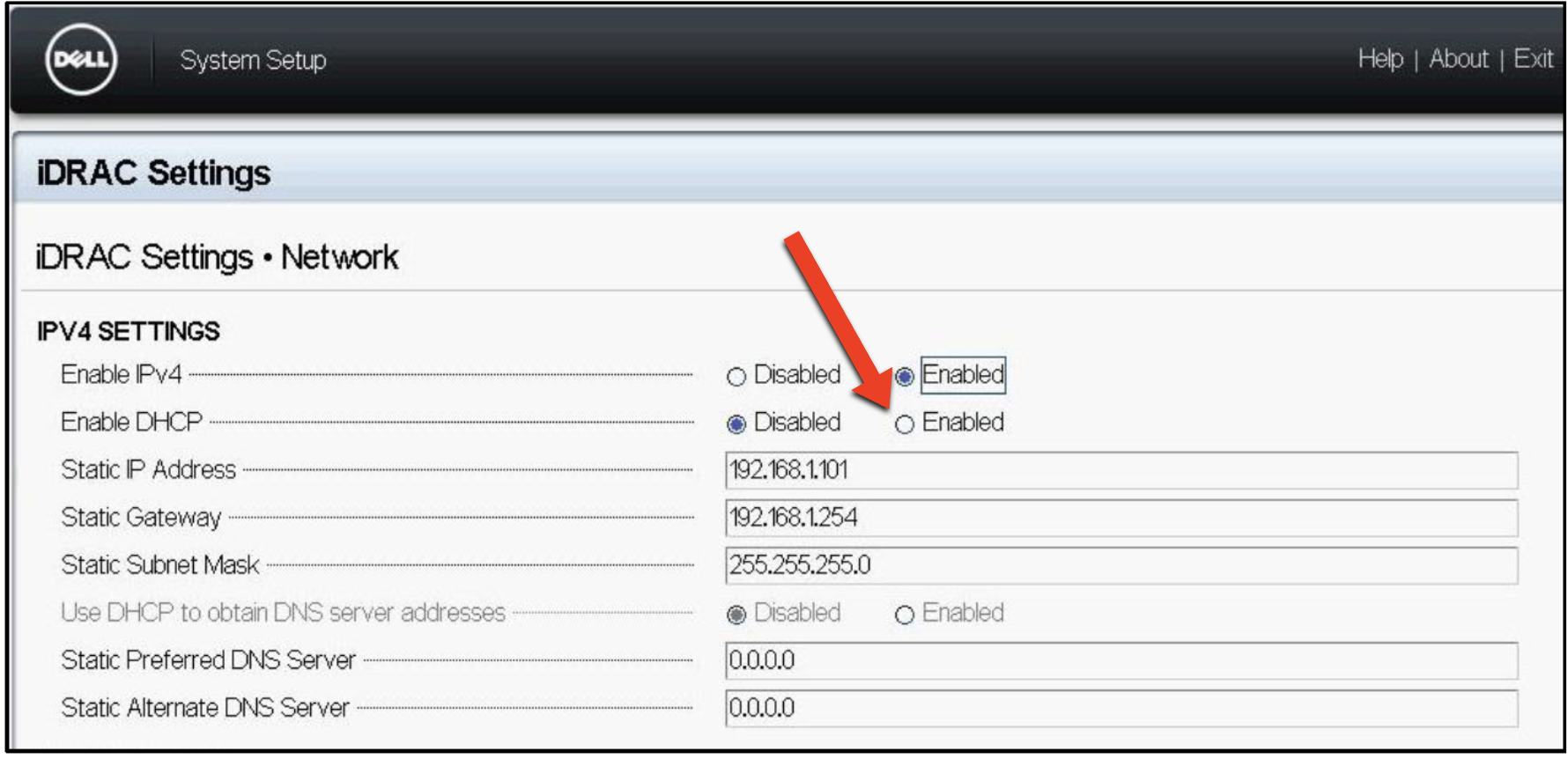
- Save and exit iDRAC Settings, save and exit System Setup.
That completes setup of your Dell server’s iDRAC 8 prior to shipping to a Dedicated.com datacenter. We look forward to receiving and racking your server!
If you are unable to complete any of these steps, or they do not match your server, or any other problem, please reach out to let us know before shipping as we would much rather assist you with configuring your server properly, versus receiving an improperly configured server that we then need to configure upon arrival on site, which will result in remote hands fees being levied.